
How can we help you today?
Explore every feature of Daily Prayer Database (DPD) — from scheduling daily prayers and building a Bible reading plan to Strong’s Concordance study, 3D verse memorization flashcards, automatic iPhone ↔ iPad iCloud Sync, and password-encrypted complete backups.
No matching help topics found
Try searching with a different keyword (for example: prayer, bible, strong, quiz, backup, reminder, or ipad).
1. Getting Started & 100% Offline Privacy
How Daily Prayer Database works and keeps your spiritual journal private
Daily Prayer Database (DPD) is built around a simple conviction: your personal prayers, reflections, and Bible study notes belong to you and God alone. Unlike cloud-based apps, DPD requires no user account, no login, no subscription, and no internet connection.
100% Local On-Device Storage & Biometric App Lock
Every prayer, Bible highlight, sermon note, and memory verse is stored exclusively in a local database on your phone or tablet. No data is ever transmitted to external servers or analytics trackers.
- Enable Face ID / Touch ID / Fingerprint Lock: Open More → Settings → Security and turn on Biometric App Lock so your private prayer requests are protected whenever you switch apps.
29 Interface Languages & Instant Contextual Help (?)
You can switch the app’s language independently of your phone’s system language at any time across 29 supported languages (English, German, French, Spanish, Italian, Portuguese, Dutch, Polish, Romanian, Tagalog, Swedish, Norwegian, Danish, Hungarian, Czech, Russian, Ukrainian, Indonesian, Swahili, Slovak, Finnish, Croatian, Catalan, Vietnamese, Greek, Hindi, Korean, Japanese, and Chinese).
- In-App Help Button (
?): Almost every screen in DPD features a?icon in the top bar. Tap it anytime for a quick summary of that screen’s icons and gestures.
2. Home Dashboard (Your Daily Devotional Hub)
Your morning overview: Prayer Streak, Verse of the Day, Reading Plan & Quick Tiles
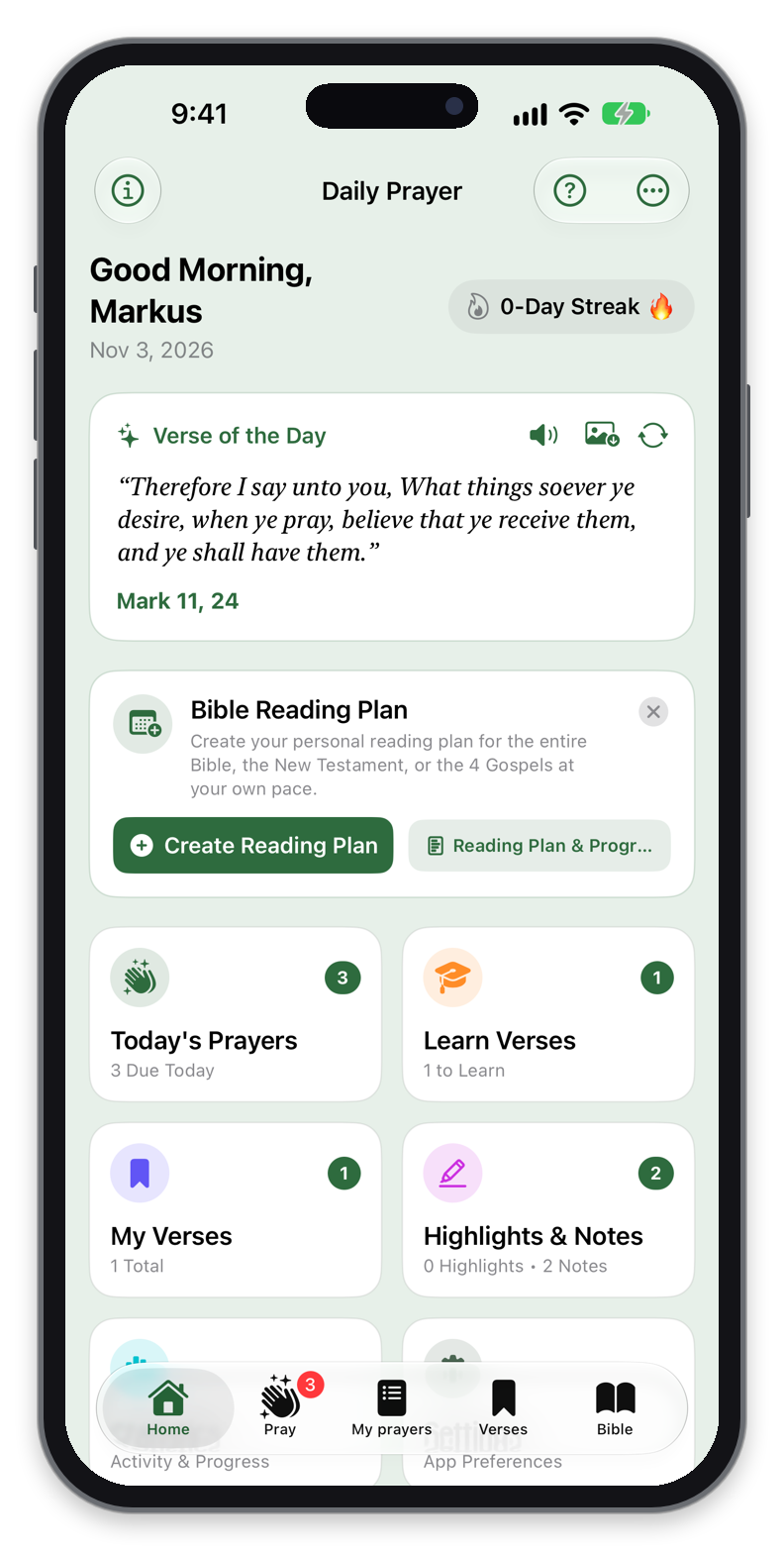
When you open DPD, the Home tab greets you by name and brings together everything scheduled for your devotional time today:
Daily Prayer Streak Badge
At the top right of your greeting header, the flame badge displays how many consecutive days you have prayed. Praying at least one due prayer per day keeps your streak alive and growing!
Verse of the Day Card
Displays a daily encouraging Scripture verse from your collection (or the built-in devotional verse list).
- Read Aloud: Tap the speaker icon to hear the verse spoken aloud via Text-to-Speech.
- Share as Image: Tap the image/share icon to open the Verse Image Creator and send a designed Scripture card to family or friends.
- Open in Bible: Tap the reference to jump straight to that chapter in the Bible Reader.
Today’s Bible Reading Card (Directly Under Verse of the Day)
Right below the Daily Verse, DPD shows your active Bible Reading Plan card (or an invitation card to start a plan in 2 taps if you haven’t created one yet):
- Tap any chapter pill (e.g., 1. Mose 1 or Matthew 5) to open that chapter directly in the Bible Reader.
- Once you finish reading today’s chapters, tap the checkmark button to mark today’s reading complete right from Home.
Quick Action Tiles
Jump with a single tap to Today’s Prayers (with a live badge showing how many prayers are due today), My Prayers, Learn Verses, Bible Reader, Sermon Notes & Highlights, or Statistics.
3. Today’s Prayers (“Pray” Tab & Swipe-to-Pray)
Focus only on the prayers due today and advance their schedule automatically
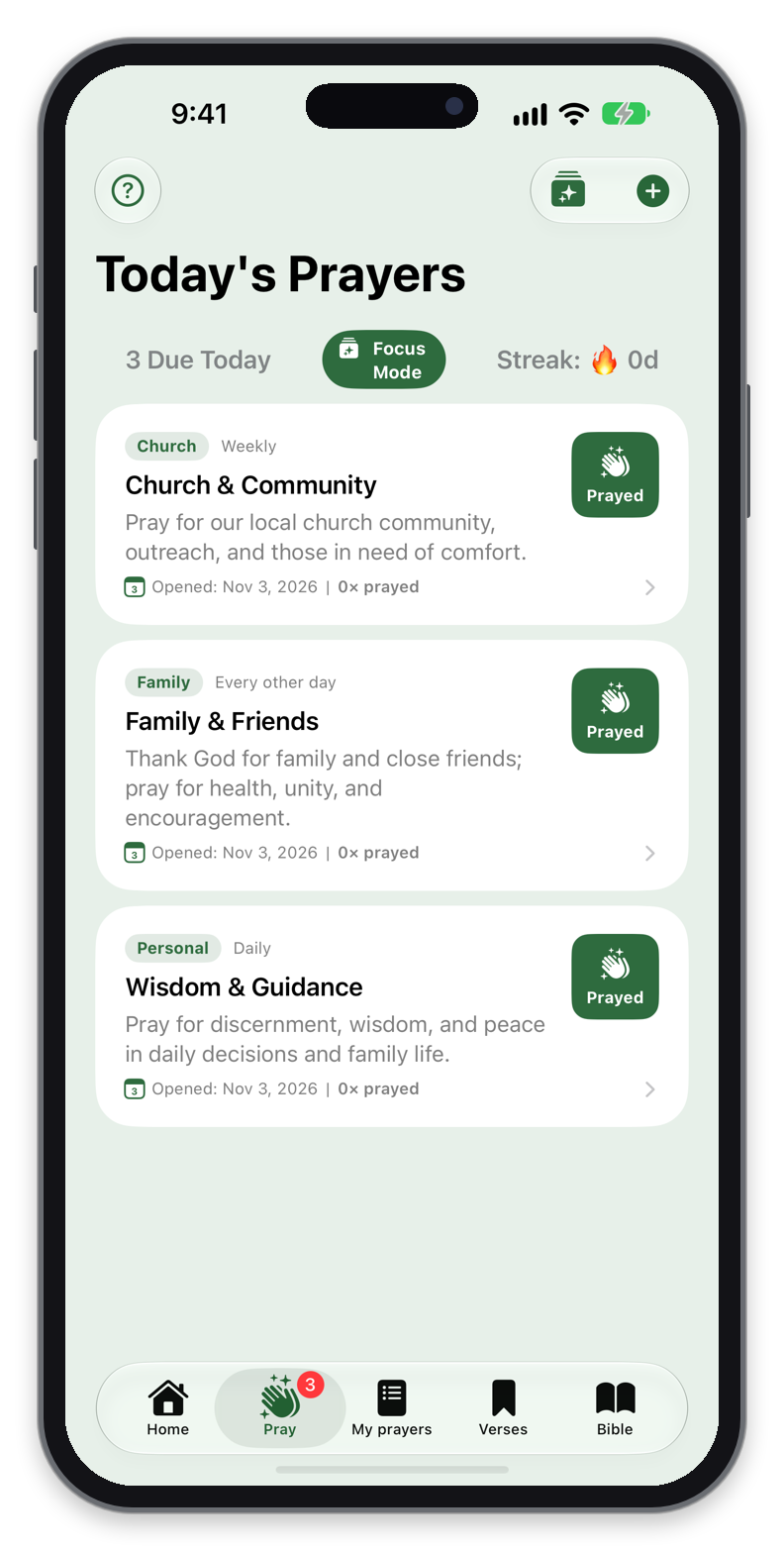
The heart of Daily Prayer Database is the Pray tab. Instead of overwhelming you with hundreds of prayer requests at once, DPD shows only open prayers whose scheduled date is today or earlier (and has not expired).
How “Swipe to Pray” Works
- Read the prayer card on screen (or browse the due list).
- Swipe the prayer card (or tap the ✓ Prayed button) once you have prayed for it.
- DPD automatically records today’s prayer in your history log, increments your prayer counter, updates your Daily Prayer Streak , and advances the prayer’s Next Prayer Date according to its interval!
Custom Prayer Frequencies (Intervals)
When creating or editing a prayer, you decide how often it should reappear in your Today’s Prayers queue:
- Daily (+1 day) — for urgent personal or family matters.
- Every 2 days / Twice a week — for ongoing situations.
- Weekly (+7 days) or Every 2 weeks (+14 days) — ideal for small group, church, or ministry requests.
- Monthly (+30 days) — great for long-term mission partners or extended family.
Clickable Scripture References Inside Prayers
If you mention a Bible passage inside your prayer title or notes (for example, Phil 4:6-7 or Psalm 23), DPD automatically turns it into a clickable link! Tap it while praying to open a Scripture Overlay and read the verse in context without leaving your prayer session.
4. Managing All Prayers (Categories, Answered Log & Filters)
Organize requests by category, creator/person, expiration date, and answered testimonies
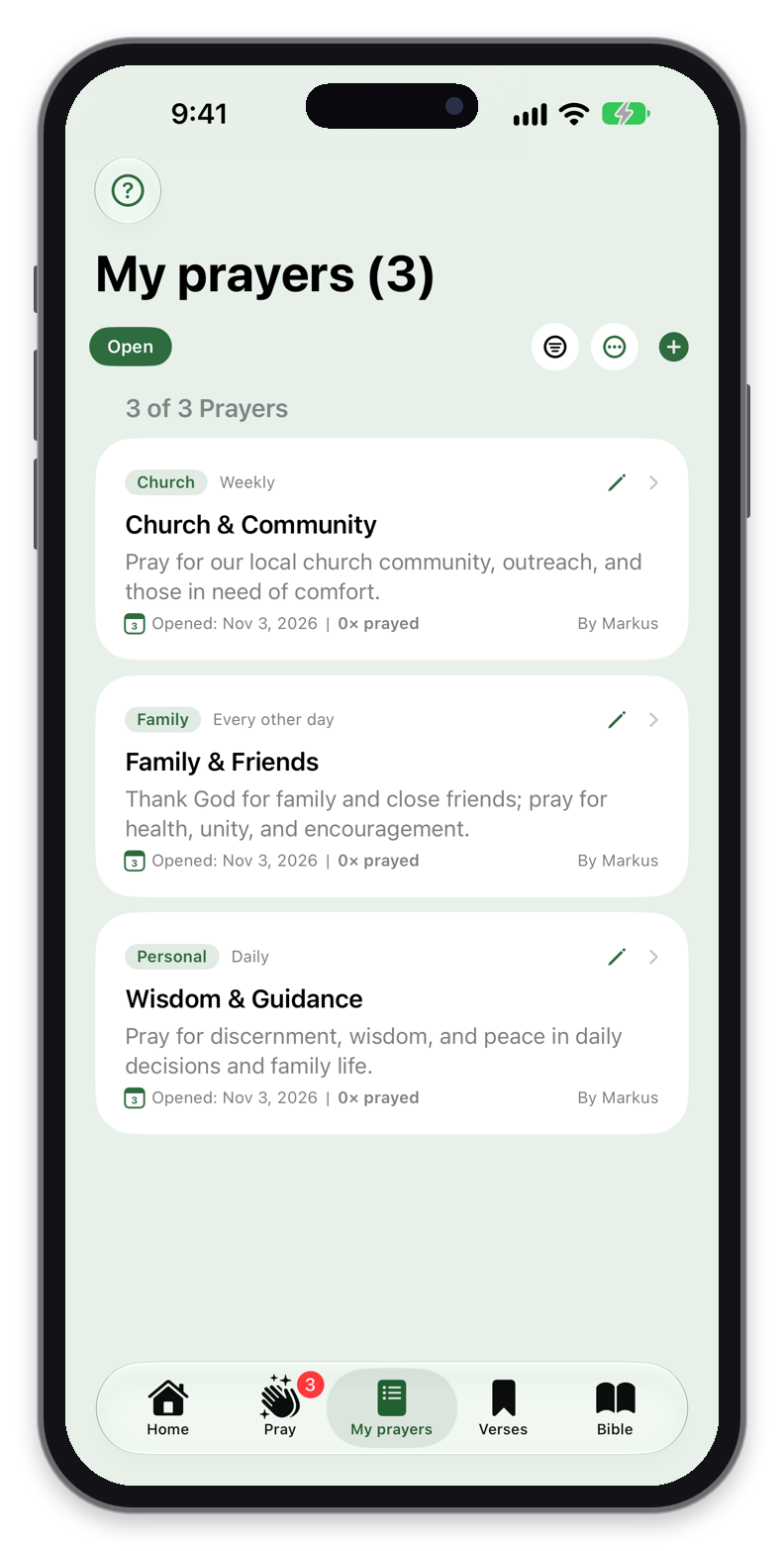
In the Prayers administration tab (My Prayers), you have full access to every prayer in your database — whether due today, scheduled for next month, expired, or answered.
Adding & Editing a Prayer
Tap the + button to create a new prayer. You can configure:
- Title & Detailed Notes: Write the request and tap + Add Update anytime to append a date-stamped progress note (e.g.,
[02.11.2026]). Any Bible reference you type in the title or notes (such asPhil 4:6-7) automatically becomes a clickable Scripture link in the detail view! - Category & Created By: Assign a category (e.g., Family, Health, Church, Mission, Work) and optionally record who created or requested the prayer.
- Pin Important Prayers (): Pin urgent prayers so they stay highlighted at the top.
- Expiration Date: Praying for an exam or surgery on a specific date? Set an expiration date so the prayer automatically stops appearing in your daily queue after that day.
Recording Answered Prayers (Closing a Prayer)
When God answers a prayer, don’t delete it! Edit the prayer, turn on Close Prayer and Prayer Answered, and write a thanksgiving note describing how God answered. You can filter by Answered or Closed anytime (or open the Answered Prayers Timeline from the ••• menu) to look back in gratitude at how God has worked over the months and years.
Smart Search, Status Chips & Category Merging
- Status Filter Chips: Switch instantly between All, Open, Answered, Closed, and Expired prayers, or use the filter button to filter by Category and Creator (Created by Me vs. Imported / Others).
- Rename or Merge Categories: Open the
•••menu → Manage Categories. Tap any category to rename it. Pro Tip: If you rename a category to the exact name of an existing category, DPD automatically merges both categories together!
5. Multi-Translation Bible Reader & Deep Study Tools
10 bundled offline Bibles, 50+ downloadable languages, Strong’s Concordance & Commentary
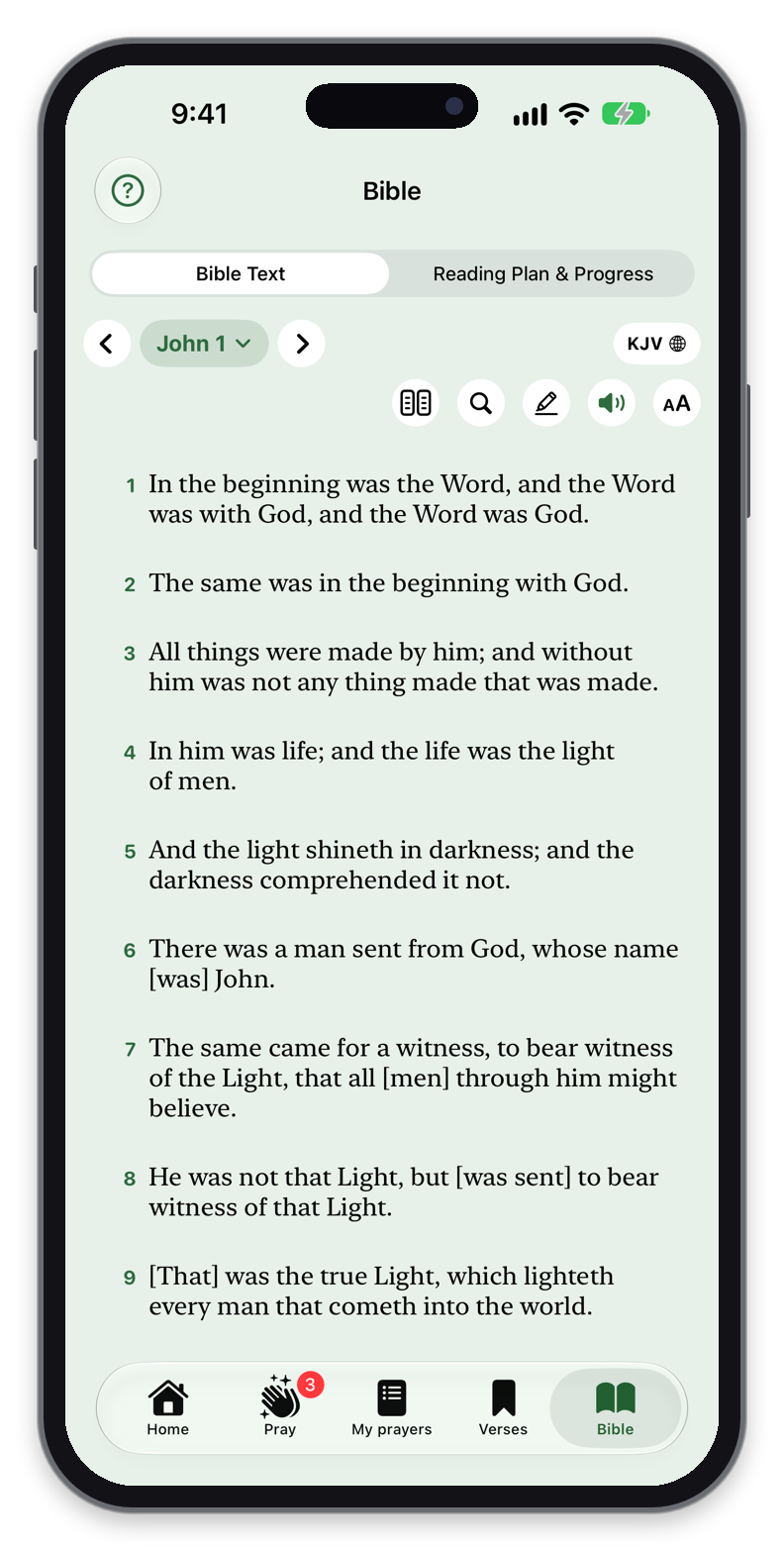
DPD includes a fast, 100% offline Bible study environment with 10 pre-installed translations (KJV, KJVS with Strong’s, ASV, ASVS with Strong’s, German Schlachter 1951, Elberfelder 1905, Luther 1912, French Louis Segond, Italian Diodati, and Spanish Reina Valera) plus one-tap downloads for over 50 additional languages.
Unified 2-Step Book & Chapter Picker (List & Grid)
Navigating across all 66 books is effortless on both iOS and Android:
- Tap the Book / Chapter selector in the top bar to open the unified selector sheet.
- Step 1 (Select Book): Filter books live using the search bar, or browse the color-coded Old Testament (39) and New Testament (27) columns showing each book’s chapter count. Use the top-left button to toggle between the 2-Column List View and the compact 6-Column Grid View.
- Step 2 (Select Chapter): As soon as you tap a book, the sheet smoothly transitions to a 5-column Chapter Grid (or immediately opens Chapter 1 for single-chapter books like Obadiah, Philemon, or Jude).
- Use the
<and>arrows in the top bar (or swipe left/right across the page) to step to the previous or next chapter.
Strong’s Hebrew & Greek Concordance (KJVS & ASVS)
Switch your translation to KJVS or ASVS to see interactive Strong’s numbers (such as H430 or G26) next to words.
- Tap any Strong’s badge to open the Strong’s Definition Sheet showing the original Hebrew or Greek word, transliteration, pronunciation, root derivation, and full lexicon definition.
- Tap Search All Occurrences inside the sheet to see every verse in the Bible where that exact Hebrew or Greek root word is used!
Matthew Henry’s Concise Commentary & Cross-Links
- Verse Commentary: Tap any verse and select Commentary (MHCC) to read Matthew Henry’s exposition for that chapter and passage offline.
- Automatic Cross-Links ( / Badges): Whenever one of your Sermon Notes or Prayers references a verse in the current chapter, DPD displays a small badge right on that verse! Tap the badge to open the linked Sermon Note or Prayer directly from the Bible Reader.
Split-Screen Translation Comparison & Continuous Audio (TTS)
- Compare Two Bibles Side-by-Side: Tap the Split/Compare icon in the top bar to read two translations in synchronized scrolling (e.g., German Schlachter alongside English KJV, or Greek/Hebrew alongside your native language).
- Pinch-to-Zoom & Font Slider (
Aa): Pinch with two fingers on the Bible text or tap theAabutton to adjust text size from 12pt to 26pt. - Read Aloud (): Tap the Play button to have the chapter read aloud verse-by-verse, automatically advancing to the next chapter when finished.
6. Bible Reading Plans & Canonical Progress Tracker
Quick-start presets, custom book bundles, live pace preview, and 1,189-chapter progress tracking
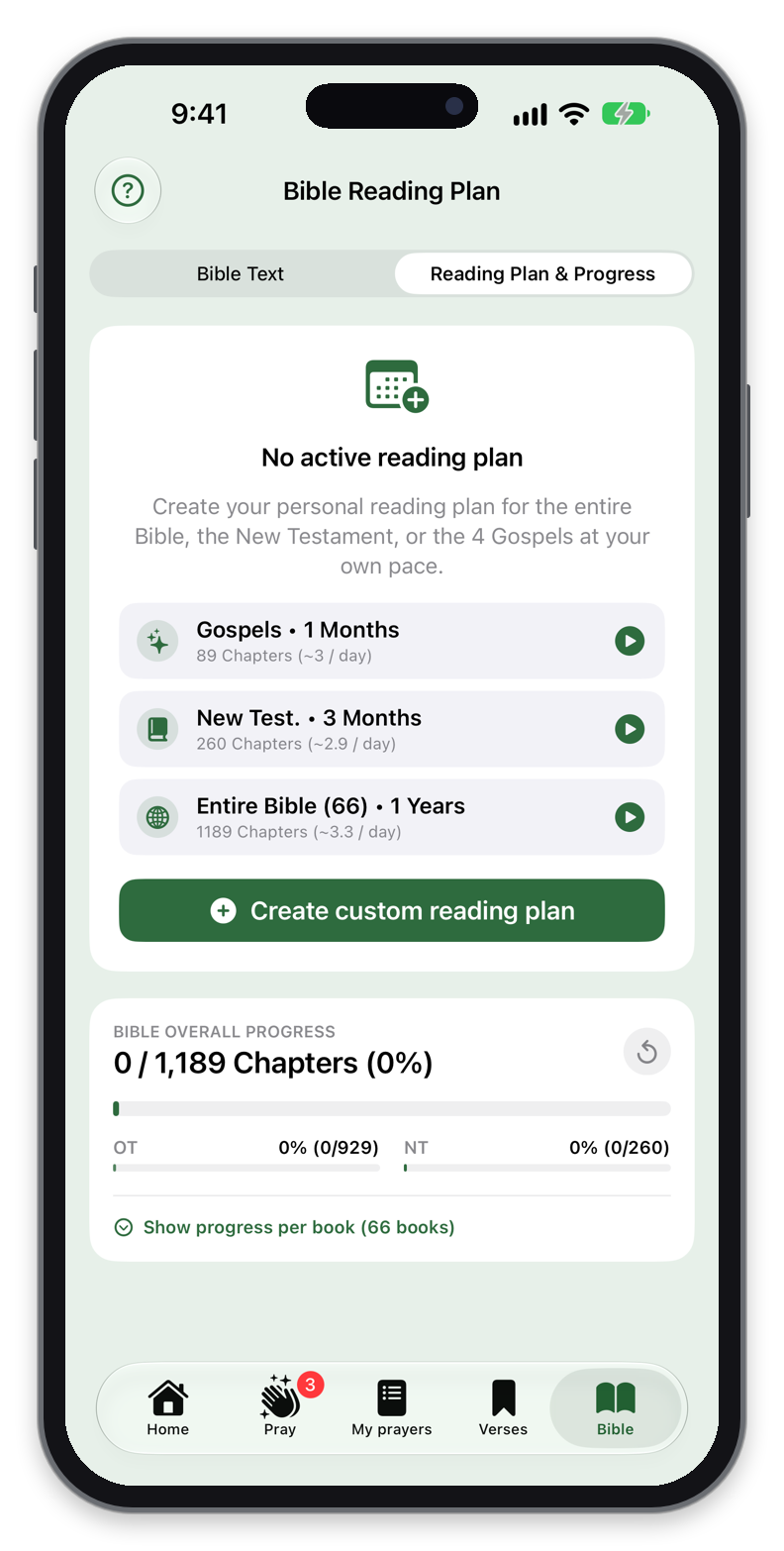
Switch the segmented control at the top of the Bible tab from Bible Reader to Reading Plan & Progress (or tap the Reading Plan card on the Home screen) to track your journey through Scripture.
3 Quick-Start Presets (Create Immediately or Customize)
If you don’t have an active reading plan yet, you can launch one in seconds using the three preset cards:
- The 4 Gospels in 1 Month (89 chapters • ~3.0 chapters/day)
- New Testament in 3 Months (260 chapters • ~2.9 chapters/day)
- Whole Bible in 1 Year (1,189 chapters • ~3.3 chapters/day)
When you tap any preset, DPD asks whether you want to Create Immediately, Customize (to tweak the duration, title, or books first), or Cancel.
Create Your Own Custom Reading Plan
Tap Create Custom Reading Plan (Eigenen Leseplan erstellen) to build a tailored plan:
- Choose a timeframe: Weeks (1–104), Months (1–60), Years (1–10), or pick a specific Target End Date on the calendar.
- Choose a scope: Whole Bible (1,189 chapters), Old Testament (929 chapters), New Testament (260 chapters), or Custom Book Selection (with combinable bundle pills for The 4 Gospels, Pauline Epistles, Psalms & Wisdom, Torah, OT History, OT Prophets, General Epistles & Revelation).
- Check the live Pace Preview showing exact chapters/day, estimated reading minutes/day, and pacing guidance (Sustainable, Ambitious, or Intense).
Edit, Share, or Archive Plans Anytime
Tap the ••• menu on your active plan card to Edit Plan (adjusting your timeframe, target date, or selected books at any time while keeping your read progress), Share Plan with Friends, or Archive Plan to your Completed & Past Plans list.
Canonical 1,189-Chapter Progress Overview
Even outside of a timed plan, DPD tracks every chapter you have ever marked as read across all 66 books (Old Testament, New Testament, and per-book progress bars). At the bottom of every chapter in the Bible Reader, tap Mark Chapter as Read ✓ to log your progress.
7. Scripture Memorization, 3D Flashcards & Image Creator
Collect favorite verses, practice with 3D flip flashcards, and design shareable Scripture images
The Verses tab is both your personal treasury of favorite Bible promises and an interactive Scripture memory trainer.
Building Your Learning Deck (Graduation Cap Icon)
You can add verses from the Bible Reader (tap any verse → Add to My Verses) or create them in the Verses tab (using the built-in Book → Chapter → Verse reference picker). Tap the Graduation Cap () icon on any verse card to include or remove it from your active Learning Quiz Deck, or toggle whether it appears in your Home screen Daily Verses rotation.
3D Interactive Flashcards (Hide Reference or Hide Text)
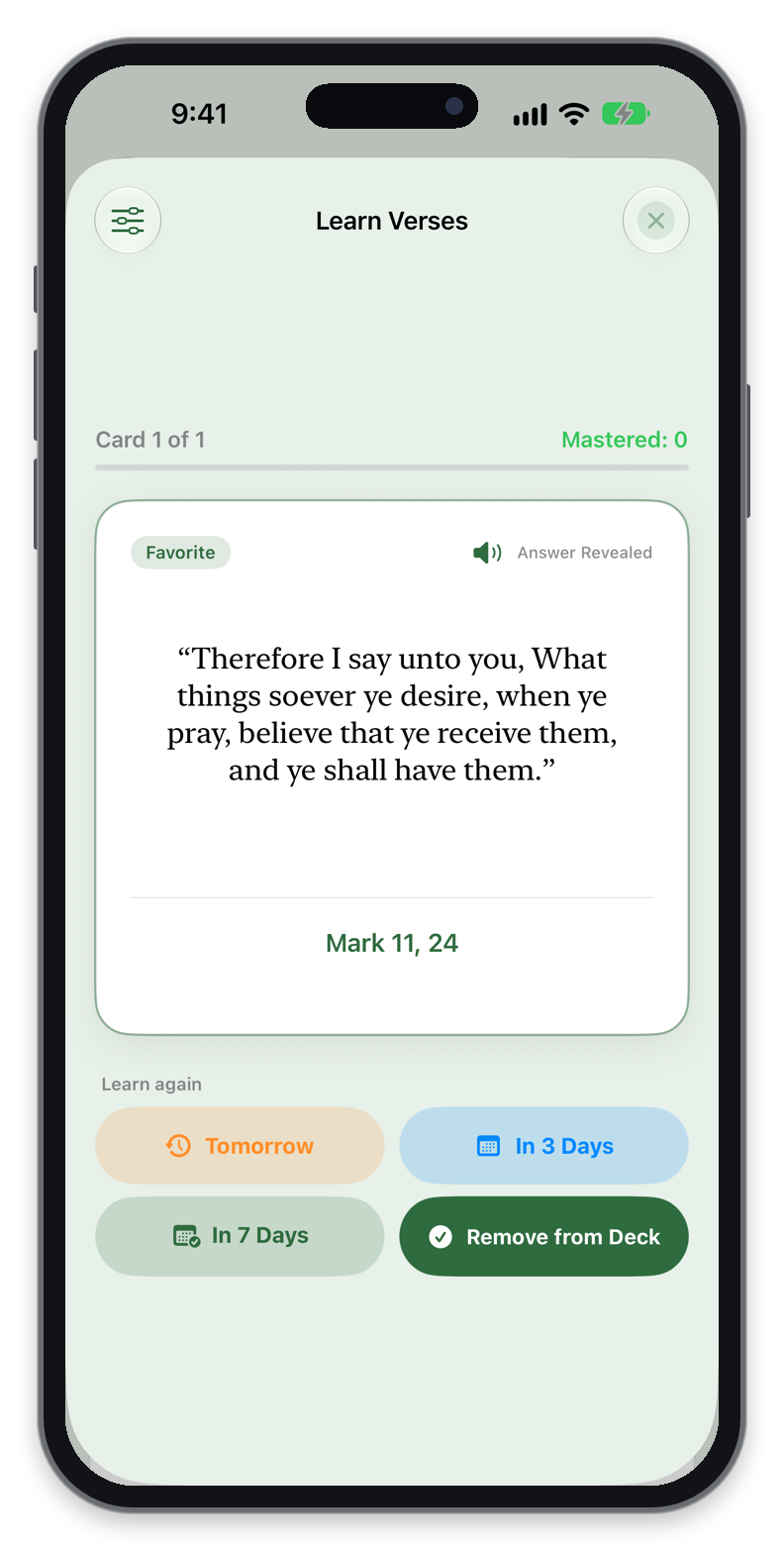
Open Learn Verses from the Home screen or Verses tab to practice your active deck:
- Two Quiz Modes: Switch anytime between Hide Verse Reference (read the verse text and recall the book, chapter, and verse) and Hide Verse Text (see the reference and recite the passage from memory).
- 3D Card Flip & Audio: Tap the card to flip it in 3D and reveal the answer, or tap the speaker icon () to listen to the verse via Text-to-Speech.
- 4 Spaced-Repetition Options (Learn again): After flipping a card, schedule when to review it next — Tomorrow, In 3 Days, or In 7 Days — or tap Remove from Deck once you have mastered the verse completely.
High-Resolution Verse Image Creator
Tap the Photo / Share Image option on any verse (in the Bible Reader, Home screen, or Verses list) to open the Verse Image Creator:
- Choose from 6 scenic nature photos (Forest, Mountain, Beach, Sunset, Palms, Lakes), your own camera roll photo, solid colors, or 10 curated gradient themes.
- Pick your aspect ratio (1:1 Square, 9:16 Story, or 16:9 Wide), font style (Serif, Sans, Script, Mono), text size, color, photo zoom/pan, and dimming — then save to Photos or share directly to WhatsApp, iMessage, or Instagram.
8. Color Highlights, Verse Notes & Sermon Notes
6 custom-labeled highlight colors, personal study notes, and structured sermon journaling
All of your Bible study markings and church sermon notes come together in the Highlights & Sermon Notes hub (accessible from the Home screen, More tab, or the bookmark icon in the Bible Reader).
6 Color-Coded Highlights with Custom Labels
- Tap any verse in the Bible Reader to highlight it in one of 6 colors (Yellow, Green, Blue, Pink, Purple, Orange) and attach a personal reflection note.
- Name Your Colors: Assign custom meanings to each color (e.g., Yellow = God’s Promises, Green = Spiritual Growth, Blue = Commands to Obey) and filter your highlights collection by color or search query.
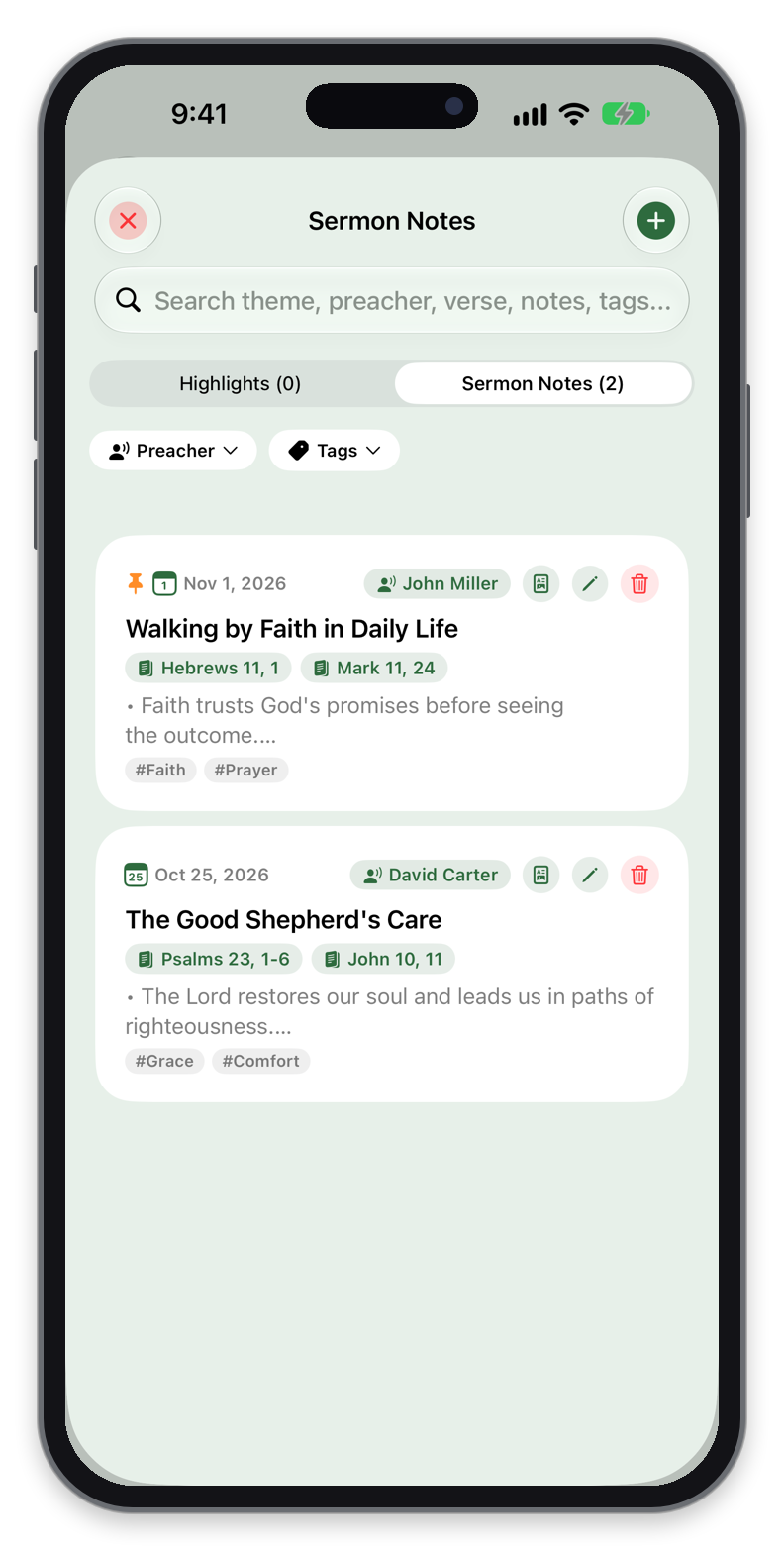
Structured Sermon Notes with Automatic Bible Cross-Links
Capture Sunday sermons, Bible studies, or devotional talks with dedicated fields for:
- Theme / Title, Preacher Name, Tags & Date (with auto-complete suggestions from previous preachers and tags).
- Scripture References & Rich Notes: Use the + Add Bible Reference button to pick passages via the Book → Chapter → Verse selector, or type any reference (e.g.,
Rom 8:28) directly in your text. - Every Scripture reference in your sermon note becomes a clickable pill that previews the passage AND automatically places a cross-link badge next to that verse inside the Bible Reader!
9. Prayer Streaks & Visual Statistics
Track your daily consistency, answered prayer counts, and weekly/monthly/yearly activity
Open Statistics from the Home dashboard or More menu to see visual insights into your devotional habits:
Weekly, Monthly & Yearly Prayer Charts & Top Lists
Switch between Week, Month, and Year bar charts to see how many prayers you have prayed over time, alongside summary counters for Total Prayers, Open, Answered, Closed, Expired, Total Times Prayed, Daily Average, Current Streak , and Longest Streak — plus your Top 5 Most Prayed For and Top 5 Oldest Open Prayers.
10. Interactive Home Screen Widgets
Keep God’s Word, due prayers, your reading plan, and flashcards on your Home Screen
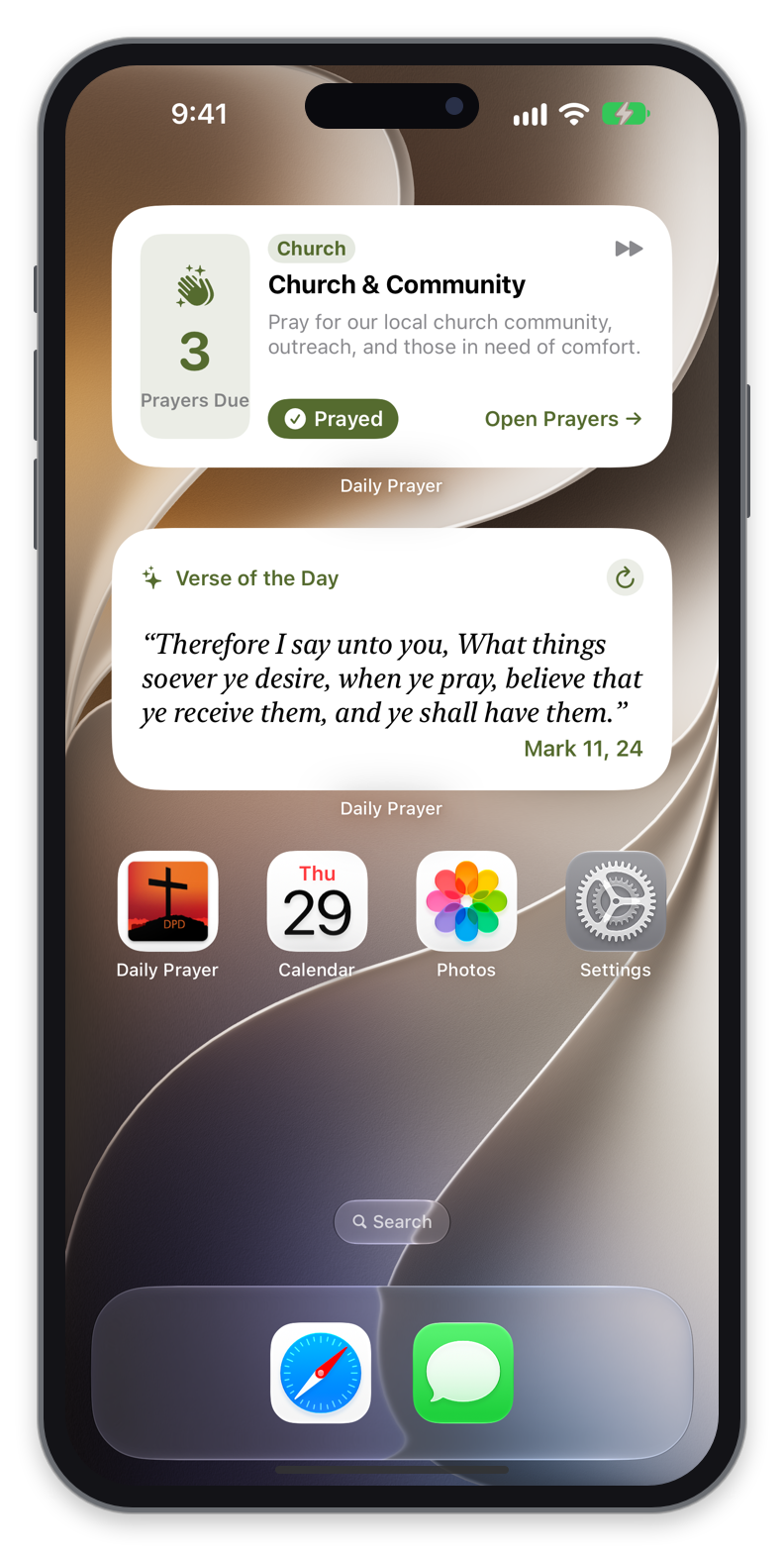
DPD provides 4 interactive widgets so your daily prayers, Scripture reading, and memory verses are always one glance away:
Due Prayers Widget (Interactive)
Displays both the title and text of your due prayers right on your Home Screen. Step through due requests with the arrows or tap the checkmark button directly on the widget to mark a prayer as prayed without even opening the app!
Interactive Learn Verses Quiz Widget
Practice your memory verses right on your Home Screen! Tap the Hide Ref / Hide Text mode badge in the widget header to switch quiz modes on the fly, tap to reveal the answer, and tap ✓ Learned or Next → directly on the widget.
Daily Verse & Bible Reading Plan Widgets
- Daily Verse Widget: Shows the Verse of the Day and lets you cycle to another encouraging verse with a tap.
- Bible Reading Plan Widget: Shows today’s scheduled chapters, your current day number, and your overall completion percentage.
- How to Add a Widget: Long-press an empty area on your iPhone/iPad or Android Home Screen, tap
+(Add Widget), and search for Daily Prayer.
11. Smart Daily Reminders & Notifications
Intelligent notifications that automatically skip if you have already prayed or read today
In More → Settings → Notifications & Reminders, you can schedule gentle daily nudges for your devotional habits that respect what you have already completed today.
Smart Daily Prayer Reminder (Auto-Skips When Already Prayed!)
Enable Daily Prayer Reminder and choose your preferred notification time. Smart Skipping: If you have already swiped/prayed at least one prayer earlier that day, DPD automatically suppresses today’s reminder so you are only nudged when you actually haven’t prayed yet — even if the app is closed!
Smart Daily Reading Plan Reminder
Right below the prayer reminder in Settings, you can enable a separate Reading Plan Reminder with its own custom time:
- If no reading plan is currently active, Settings displays a helpful notice (No reading plan active) and no notification is sent.
- As soon as you finish today’s scheduled chapters, today’s reading reminder is automatically skipped for the rest of the day and resumes tomorrow!
Daily Verse Notification & Periodic Backup Reminder
- Daily Verse Notification: Receive an encouraging Verse of the Day notification straight to your lock screen.
- Backup Reminder Interval: Optionally remind yourself every 7, 14, 30, or 60 days to save an external Complete Backup archive.
12. App Settings & Personalization
Complete guide to everything you can customize in More → Settings
Open More → Settings (or tap the gear icon) to tailor every detail of Daily Prayer Database to your personal devotional routine:
Profile, 29 Interface Languages & Default Prayer Frequency
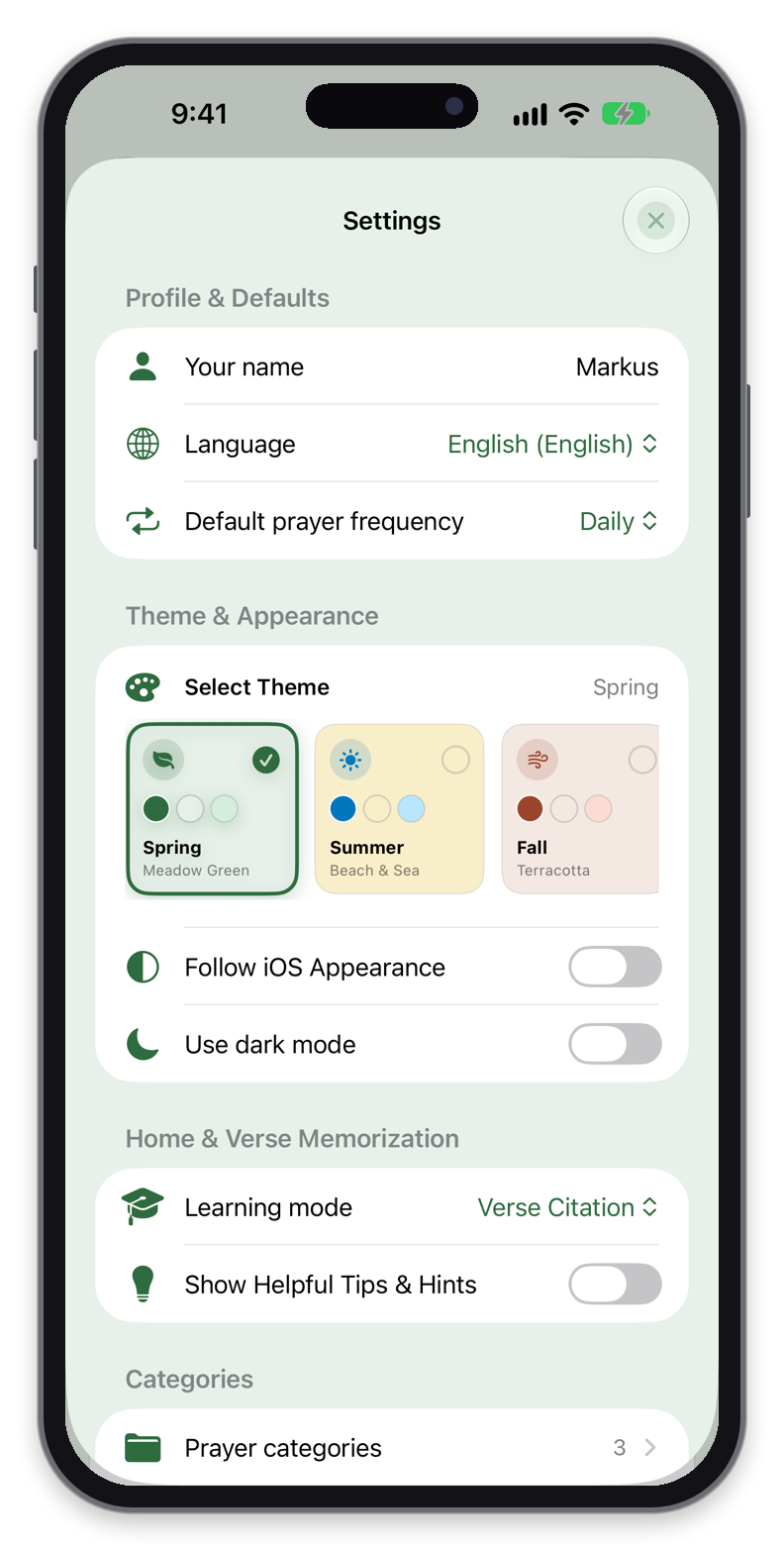
- Your Name: Enter your name to personalize the morning, afternoon, and evening greeting on the Home dashboard.
- App Language (29 Languages): Switch the app’s interface language at any time independently of your phone or tablet’s system language.
- Default Prayer Frequency: Choose the default interval (Daily, Every 2 Days, Twice a Week, Weekly, Every 2 Weeks, or Monthly) pre-selected whenever you create a new prayer.
6 Seasonal Color Themes & Light / Dark Mode
Choose from 6 handcrafted color themes — Spring (Meadow Green), Summer (Beach & Sea), Fall (Autumn Terracotta), Winter (Nordic Ice), Monochrome (Minimal Slate), or System Default — and pair them with automatic System Appearance, Light Mode, or Dark Mode.
Bible Reader Format, Font Size & Highlight Color Labels
- Bible Reference Format: Choose how Scripture references are formatted across the entire app — e.g., International Colon (
John 3:16), European Comma (Joh 3, 16), or Period notation. - Book Selector Layout & Text Size: Set your preferred Book Picker layout (2-Column List vs. 6-Column Grid) and default reading font size (
13pt – 26pt). - Custom Highlight Color Labels: Assign your own meaning to each of the 6 Bible highlight colors (e.g., Promises, Commands, Prophecy, Prayer).
Managing Categories, Preachers, Sermon Tags & Quiz Mode
- Categories, Preachers & Tags Administration: Rename, reorder, delete, or merge your Prayer Categories, Verse Categories, Sermon Preachers, and Sermon Tags in one central place.
- Flashcard Quiz Mode & Helpful Hints: Set your default 3D Flashcard learning mode (Hide Verse Reference vs. Hide Verse Text) and toggle contextual in-app tips.
Security (Biometric Lock) & Copy Settings Across iCloud Devices
- Face ID / Touch ID / Fingerprint App Lock: Require biometric authentication whenever you open or switch back to DPD.
- Copy Settings from Another iCloud Device (iPhone ↔ iPad): When using DPD on both an iPhone and an iPad, a dedicated Other Devices on iCloud banner appears at the top of Settings so you can pull settings from your other device on demand while keeping device-specific preferences (like font size or dark mode) independent if you wish.
13. Backup, Restore (Overwrite) vs. Import (Add), Snapshots & PDF
1-tap encrypted complete backups, the difference between Restore and Import, local snapshots & A4 PDF printing
In More → Backup & Restore, DPD gives you complete control over your database with standard and password-encrypted .json backup files that are 100% compatible in both directions between Android and iOS.
• Restore (Overwrite Existing): Replaces your current data with the contents of the backup file (existing items in that category are deleted first). Use Restore when moving to a new phone or rolling back to an earlier state.
• Import (Add to Existing): Appends the items from the file to your current database without deleting anything you already have! Use Import when a friend, spouse, or church group shares a Prayer list, Verse collection, Reading Plan, or Sermon Note file with you.
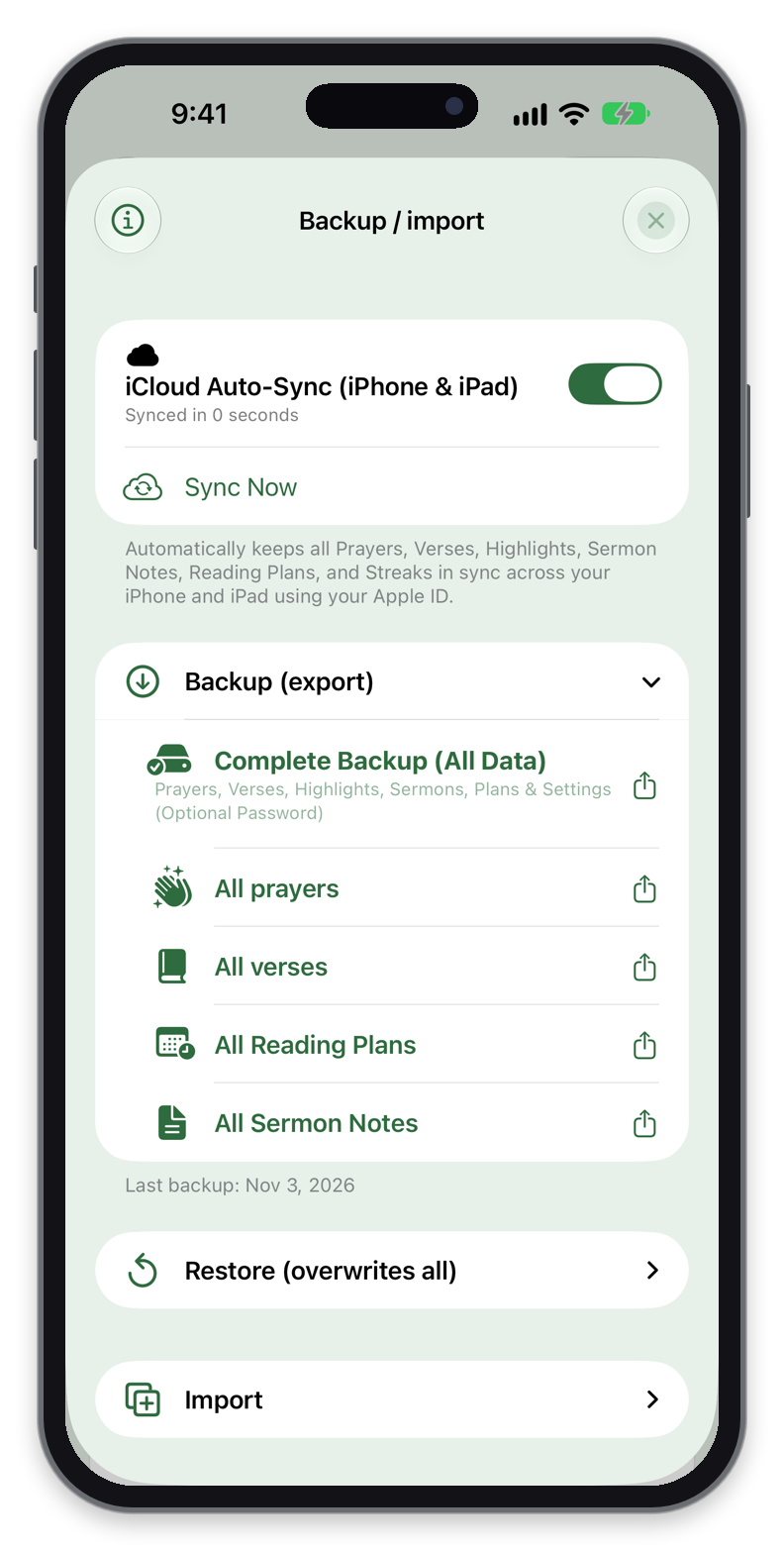
1. Backup (Export) — Complete Backup or Individual Sections
Expand Backup (Export) to save your data to Files/Drive or share it directly via AirDrop, WhatsApp, or Email:
- Complete Backup (All Data): Packages all Prayers, Prayer History Logs, Memory Verses, 6-Color Highlights & Verse Notes, Sermon Notes, Reading Plans, Canonical Read Chapters, Streaks, and Settings into a single file.
- Optional AES-256 Password Encryption: When creating a Complete Backup, you can enter a password to encrypt it with AES-256-GCM (PBKDF2-HMAC-SHA256, 120,000 iterations) as an encrypted
.jsonfile (or leave the password blank for an unencrypted.jsonfile). - Individual Section Backups: You can also export separate JSON files for All Prayers, All Verses, All Reading Plans, or All Sermon Notes.
2. Restore (Overwrite Existing Data)
Expand Restore (Overwrite Existing) when setting up a new device or recovering from a backup:
- Restore Complete Backup (All Data): Replaces your entire database with the selected
.jsonbackup file (prompts for your password if encrypted). - Section-Only Restore: You can also overwrite only your Prayers, only your Verses, only your Reading Plans, or only your Sermon Notes while leaving the rest of your app untouched.
- For your safety, DPD always shows a confirmation dialog warning that existing data in that section will be replaced before overwriting.
3. Import (Add / Append to Existing Data)
Expand Import when you want to add items from a file while keeping all of your existing data intact:
- Import Prayers / Verses / Sermon Notes: Reads the selected JSON file, shows you how many items were found (e.g.,
+ 12 Verses), and adds them to your existing collection. - Import Reading Plans (Smart Active Plan Handling): If you already have an active reading plan when importing a new one, DPD asks whether you want to Archive your current plan & activate the new one or Delete your current plan & activate the new one.
4. Automatic Weekly Snapshots & “Verify Backup File”
- Automatic Snapshots: DPD automatically keeps up to 3 rolling weekly snapshots right on your device (showing exact counts of Prayers, Verses, Plans, and Sermon Notes) plus a Create Snapshot Now button before major changes.
- Verify Backup File: Tap Verify Backup File at the bottom of the screen to inspect any backup file’s integrity and item counts without modifying your current database.
5. Printable A4 PDF Prayer Booklets & Excel Export
- Export as Printable PDF: In the Prayers or Sermon Notes tab, open the
•••menu and select Export PDF to generate a clean, formatted A4 document for your paper Bible or small group. - Open in Microsoft Excel: Standard unencrypted
.jsonprayer backups can also be imported directly into Microsoft Excel as a table for custom sorting and printing.
14. Automatic iPhone ↔ iPad iCloud Sync (iOS & iPadOS)
Zero-setup Apple ID cloud sync with offline-first per-item smart merging and device settings transfer
Works Out-of-the-Box Between iPhone & iPad
If you use Daily Prayer Database on both an iPhone and an iPad signed into the same Apple ID (with iCloud Drive enabled), synchronization happens automatically right out of the box — no account registration, no login, and no manual file exporting needed:
- Everything Syncs Automatically: All Prayers, Prayer History Logs (swipes), Memory Verses, 6-Color Bible Highlights & Verse Notes, Sermon Notes, Bible Reading Plans & Canonical Read Chapters, and Prayer Streaks.
- Instant 2-Second Push & Live Pull: Whenever you add, edit, delete, or swipe a prayer, DPD pushes the change to iCloud after 2 seconds and automatically pulls incoming updates whenever you open the app or receive a live iCloud notification.
Offline-First & Per-Item Smart Merge Engine (Zero Data Loss)
What happens if you pray on your iPhone while your iPad is offline in Airplane Mode — or if you edit different items on both devices before they reconnect?
- Per-Item Comparison (Never Overwrites the Whole Database): Unlike simple file sync that overwrites one device with another, DPD’s sync engine merges records item by item using unique UUIDs and millisecond
updatedAttimestamps. - Deletion Tombstones: If you delete a prayer, verse, or sermon note on your iPhone, a lightweight deletion tombstone ensures it is cleanly removed on your iPad upon reconnection rather than re-appearing.
- Cumulative Prayer History: Prayer swipe logs from both devices are combined so your streak and prayer counts are always accurate.
Live Sync Controls & “Copy Settings from Another iCloud Device”
- Sync Status & Manual Sync Now: Open More → Backup & Restore anytime to view the live Last Synced timestamp, tap Sync Now to trigger an immediate sync, or pause iCloud Auto-Sync on a specific device.
- On-Demand Settings Sync (iPhone ↔ iPad): Because you may want a larger Bible font size on iPad or Dark Mode only on iPhone, visual settings are kept per-device by default — but in More → Settings, the Other Devices on iCloud section lets you copy settings from your other device with a single tap whenever you want!
15. Frequently Asked Questions & Troubleshooting
Quick solutions to common questions from Daily Prayer Database users
How does iPhone ↔ iPad iCloud Auto-Sync work, and what if one device is offline?
How do I move all my data to a new phone, or switch between Android and iPhone?
Why do I only see some of my prayers in the “Pray” tab?
I downloaded a Hebrew (OT-only) or Greek (NT-only) Bible and see no verses in the current chapter. Why?
How do I edit or delete a Sermon Note or Prayer on an iPad?
Why didn’t my Daily Prayer or Reading Plan reminder notification fire today?
- If you already swiped/prayed at least one prayer earlier today, today’s Prayer Reminder is automatically skipped and rescheduled for tomorrow.
- If you already completed all of today’s scheduled reading chapters (or if you have no active reading plan), today’s Reading Plan Reminder is automatically skipped.
How do I download additional offline Bibles in other languages?
KJV or SCH), tap Filter by Language to choose from over 50 languages, and tap the Download icon next to any translation under Available to Download. Once downloaded, the Bible is stored 100% offline on your device.